
iCloud storage gets expensive not because you’re careless, but because the default experience is “save everything forever” and the pain only shows up when you hit the limit. Then you’re nudged toward upgrading a plan instead of understanding what’s actually using space. In 2026, the easiest way to cut iCloud costs is to treat your storage like a set of buckets with different value: device backups, photos, messages, iCloud Drive files, and app data. Each bucket has different rules, and “cleaning iCloud” is mostly about shrinking the biggest bucket without breaking the safety net you rely on. The key lifehack is to audit first, then make two kinds of decisions. The first kind is removal: delete old device backups, heavy app backups, duplicate files, and unnecessary sync categories. The second kind is strategy: decide what needs to be in iCloud for convenience and what can live locally or in a separate archive. Most people can save real money by doing three things: keeping only one current device backup, making Photos storage behavior intentional (especially if you also keep local or external copies), and trimming iCloud Drive / Messages attachments that grew quietly over years. The safe way is to make one change at a time, verify nothing important disappeared, and only then move to the next bucket. That way you cut costs without gambling your memories or work files.
Audit iCloud storage like a budget: find the real culprit in five minutes
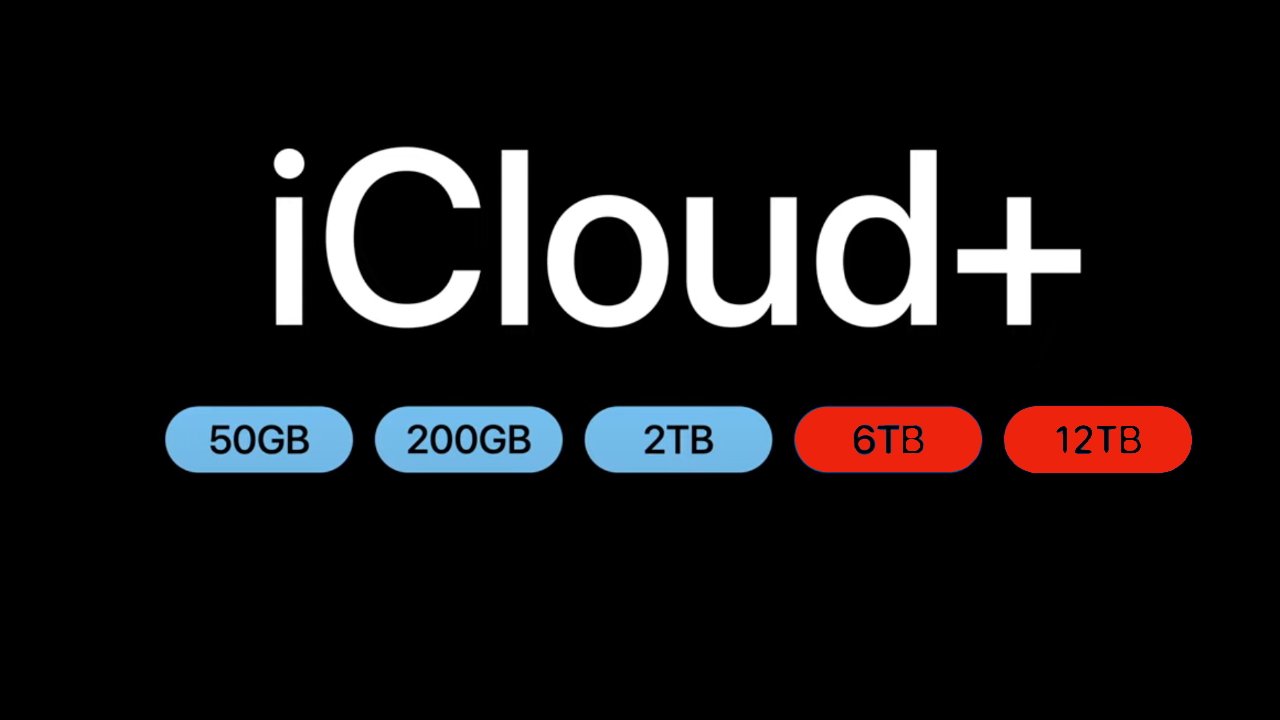
Before deleting anything, open iCloud storage management and look at the category breakdown. The goal isn’t to guess, it’s to find the top one or two categories that dominate your plan. For many users it’s Photos, device backups, or iCloud Drive, sometimes Messages if you share lots of videos. The lifehack is to read the numbers and pick one target, because random deletions across apps rarely move the needle. Start with backups: you might have backups for old iPhones or iPads you no longer own, and those can sit there for years. Deleting an old device backup is usually the fastest “instant savings” win because it’s safe when you’re sure you don’t need to restore that device. Next, scan which apps are inflating your current backup. Some apps store large caches or offline downloads that don’t need to be backed up, and you can exclude them from iCloud Backup without deleting anything from the phone. Then check iCloud Drive for large folders that could live elsewhere, such as old installers, exported videos, or duplicate archives. Finally, check Messages attachments: years of shared videos can quietly take tens of gigabytes. The key safety principle is this: don’t touch what you don’t understand yet. Your first pass is just identification and prioritization. Once you know the biggest bucket, you can apply targeted cleanup that frees meaningful space while keeping what actually matters protected.
Clean backups safely: remove old devices, exclude bloated apps, and keep the essentials
Backups are often the most misunderstood part of iCloud storage. The backup is not just your photos—it’s device settings, app data, and a lot of small pieces that help you restore quickly when you switch phones. The lifehack is to keep backups slim and intentional, not to eliminate them. First, delete backups for devices you no longer use. If you’ve upgraded more than once, you can easily have multiple old backups that serve no purpose unless you plan to resurrect an old device exactly as it was. Next, optimize the active backup by excluding apps that don’t need cloud backup. The classic examples are streaming apps that re-download content, social apps where everything is server-based, and apps that cache huge offline files you can restore separately. You’re not uninstalling the app; you’re simply telling iCloud “don’t store this app’s backup payload.” Keep the essentials included: your device settings, health data if you rely on it, and any apps that contain local-only information that would hurt to lose. Another smart move is to reduce the size of what apps store locally in the first place. If you have messaging apps with enormous local media caches, clean those inside the app so your phone storage and potential backup footprint shrink together. The safety check after changes is simple: run a new backup, then confirm it completes successfully. If backup size drops and it still finishes, you’ve lowered iCloud usage without increasing your risk.
Sync smarter: store what you need in iCloud, archive what you don’t
iCloud is both a backup service and a sync service, and mixing those concepts causes overspending. Sync means your data is meant to live in iCloud and mirror across devices—great for convenience, but costly if you sync everything by default. The lifehack is to decide what must be available everywhere and what can be archived elsewhere. For iCloud Drive, keep active work files and “living documents” synced, but move heavy archives—old project exports, unused videos, long-term downloads—out of iCloud Drive into a separate local archive or another storage platform you prefer. The same logic applies to desktop and documents syncing: if you enable syncing of Desktop/Documents on a Mac, it can balloon storage because it sweeps in everything, including large forgotten folders. If you like the convenience, keep it on but prune aggressively; if you don’t need it, turn it off and keep those folders local. For Photos, be intentional about your setup. If iCloud Photos is your primary photo library, then you’re paying for the convenience and safety of a synced, cloud-based library—fine, but you should accept that Photos will dominate storage and focus on reducing other categories instead. If you don’t want to pay for large photo storage, then you need an alternative archive strategy (external drive, computer-based library, or another cloud provider) and you should avoid half-measures that leave you with duplicates and confusion. The safe approach is to pick one primary “source of truth” for each type of data: one for photos, one for documents, and one for backups. Clarity prevents double-paying and accidental loss.
Final checks: confirm protection, prevent regrowth, and keep costs predictable
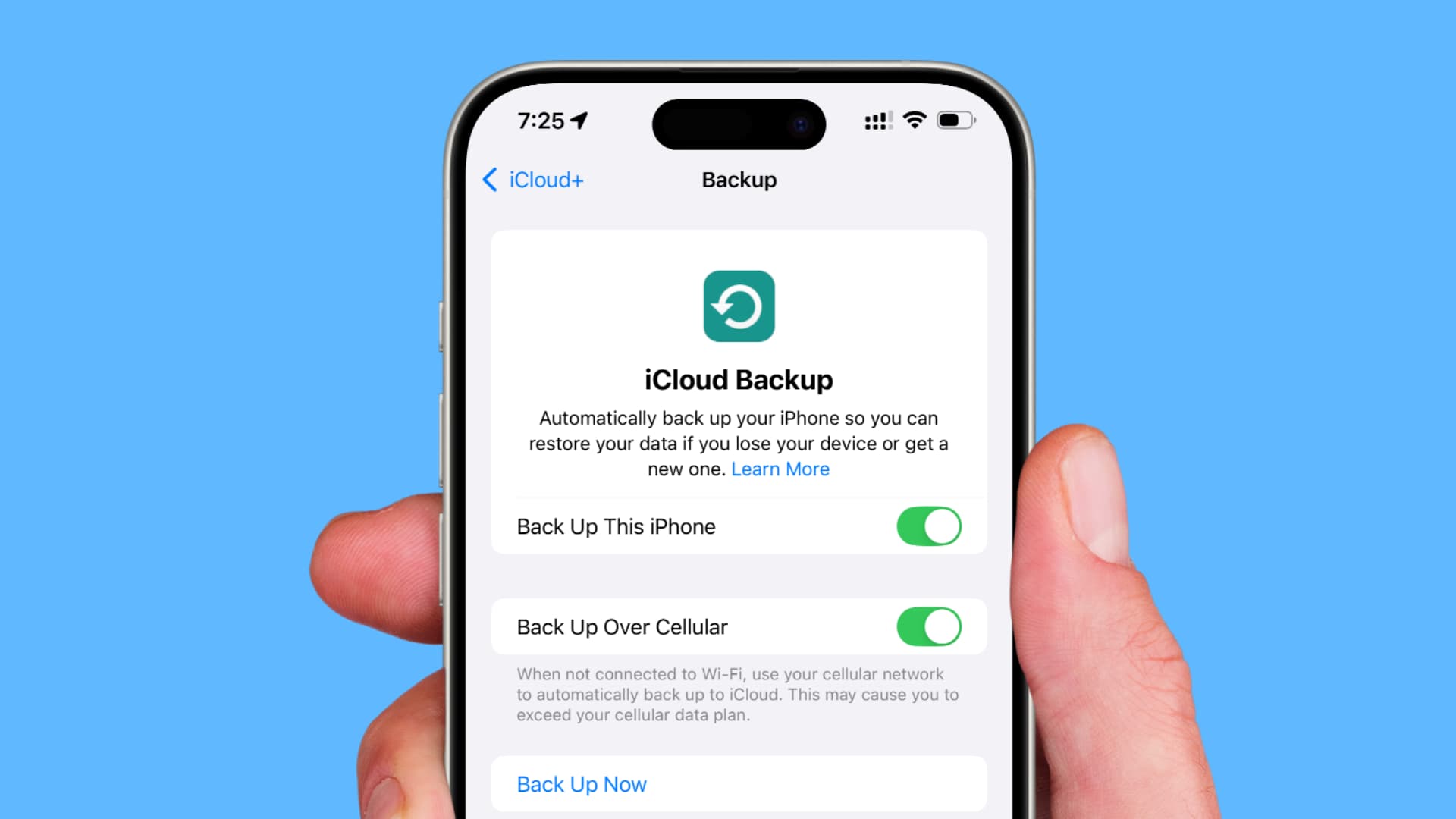
After you free space, the last lifehack is making sure your storage doesn’t quietly grow back. First, confirm your essentials are protected. That means your active device backs up successfully, your important synced folders are accessible on a second device, and your photos are intact in the system you chose as your source of truth. Don’t skip this step—people sometimes delete a backup, then later realize they lost access to something that wasn’t synced elsewhere. Next, prevent regrowth by tightening habits. Review iCloud storage once a month for two minutes and watch for a category that starts climbing. If Messages attachments grow fast, change how you share large videos or periodically clean attachments. If iCloud Drive grows, adopt an “archive out” routine: when a project ends, move the final export to an archive location outside iCloud and keep only what you need for ongoing work in sync. If backups bloat, exclude the culprit apps and clear large caches. Also be careful with family storage plans: it’s easy to think “we’re fine” until one person’s photos or backups push everyone into an upgrade. A simple shared rule helps, like “only one device backup per person” and “large videos go to a shared archive folder.” When you treat iCloud storage like a living system rather than a one-time cleanup, you keep costs stable and reduce the chance of being pressured into upgrades you don’t actually need.